FlowHome may earn from qualifying Amazon purchases. Recommendations focus on intended use, documented requirements, and explicit limitations.

Best of FlowHome

Smart Hub Buying Guide: Aqara, SwitchBot, and Aeotec Roles

Compare documented bridge and controller roles, exact-device support, and ecosystem requirements before choosing a hub.

This is a role-based documentary shortlist, not a compatibility certification or price ranking. Identify the actual accessories and desired actions before selecting a hub.

By FlowHome Editorial Team

Published

Evidence basis: data evaluated

Smart Hub
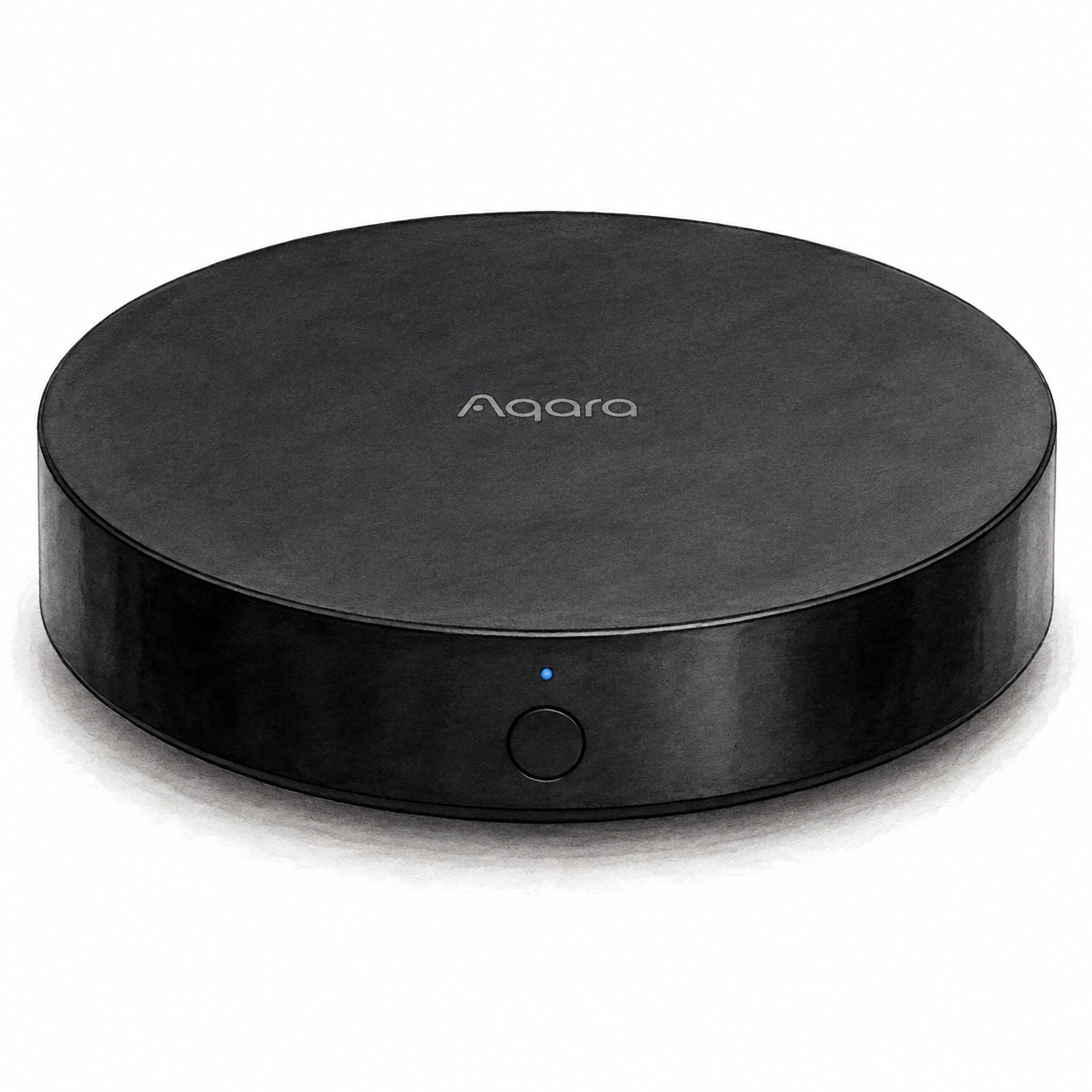
Illustration of the low black circular Aqara Hub M2 with a front button and small blue indicator; not a product photo, cables and accessories omitted

Aqara Hub M2 illustration — not a product photo

Aqara

Aqara Hub M2

Aqara hub for compatible accessories

Power and app setup

Plan for a separate 5 V USB power adapter; check the exact package. Ethernet does not replace USB power.

Setup checks & conditions

First setup check

Plan for a separate 5 V USB power adapter; check the exact package. Ethernet does not replace USB power.

The setup document covers HM2-G01. It does not certify every accessory or the firmware of a seller's unit.

  • For the documented HM2-G01 model, connect Micro-USB power using a 5 V, 1 A or 2 A adapter. The manual says the adapter is purchased separately; check the exact package before buying.
  • Use the Aqara Home app with your phone on 2.4 GHz Wi-Fi for setup. An RJ45 Ethernet cable can connect the hub to the router's LAN port; USB power is still required.
  • Place the hub indoors and avoid metal obstructions around it. Follow the manufacturer placement and accessory-pairing instructions for your exact hardware.
All setup checks & sources
Smart Hub
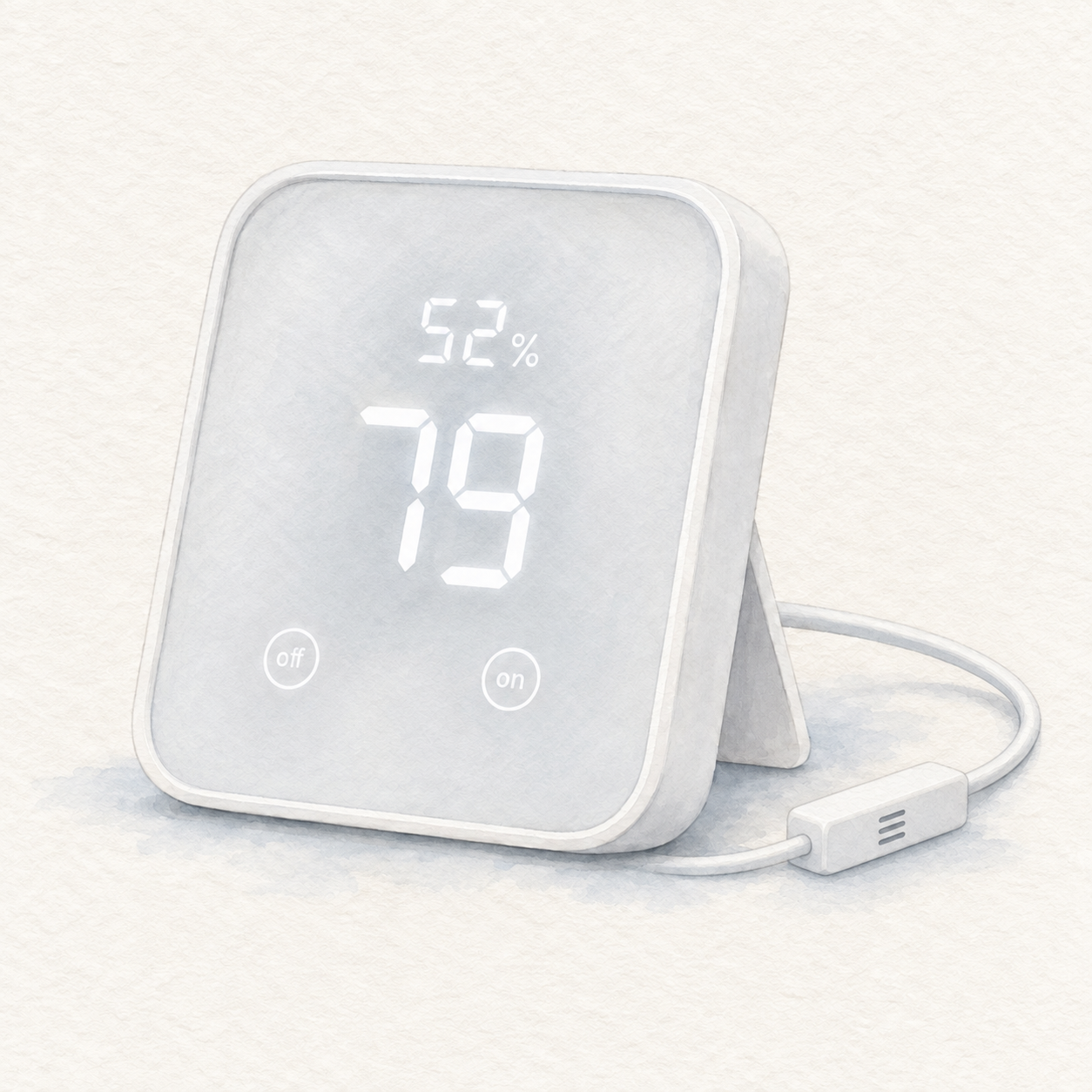
Illustration of the white SwitchBot Hub 2 with off-on touch buttons, rear stand and inline cable sensor; not a product photo, readings are illustrative and power adapter is omitted

SwitchBot Hub 2 illustration — not a photo; sample readings

SwitchBot

SwitchBot Hub 2

App-configured SwitchBot hub

Power and app setup

Power Hub 2 with a 5 V, 2 A supply and its sensor-equipped USB-C cable. The temperature and humidity sensors are in that cable; an ordinary replacement cable is not equivalent.

Setup checks & conditions

Initial pairing is documented; this does not establish a particular Matter action or accessory pairing.

  • Power Hub 2 with a 5 V, 2 A supply and its sensor-equipped USB-C cable. The temperature and humidity sensors are in that cable; an ordinary replacement cable is not equivalent.
  • Complete pairing in the SwitchBot app using a 2.4 GHz Wi-Fi network. Follow the current app instructions for your installed firmware.
  • Keep the cable sensor's air vent clear and away from heat sources that could affect its readings. Check the exact package for the correct cable and US power adapter.
All setup checks & sources
Smart Hub
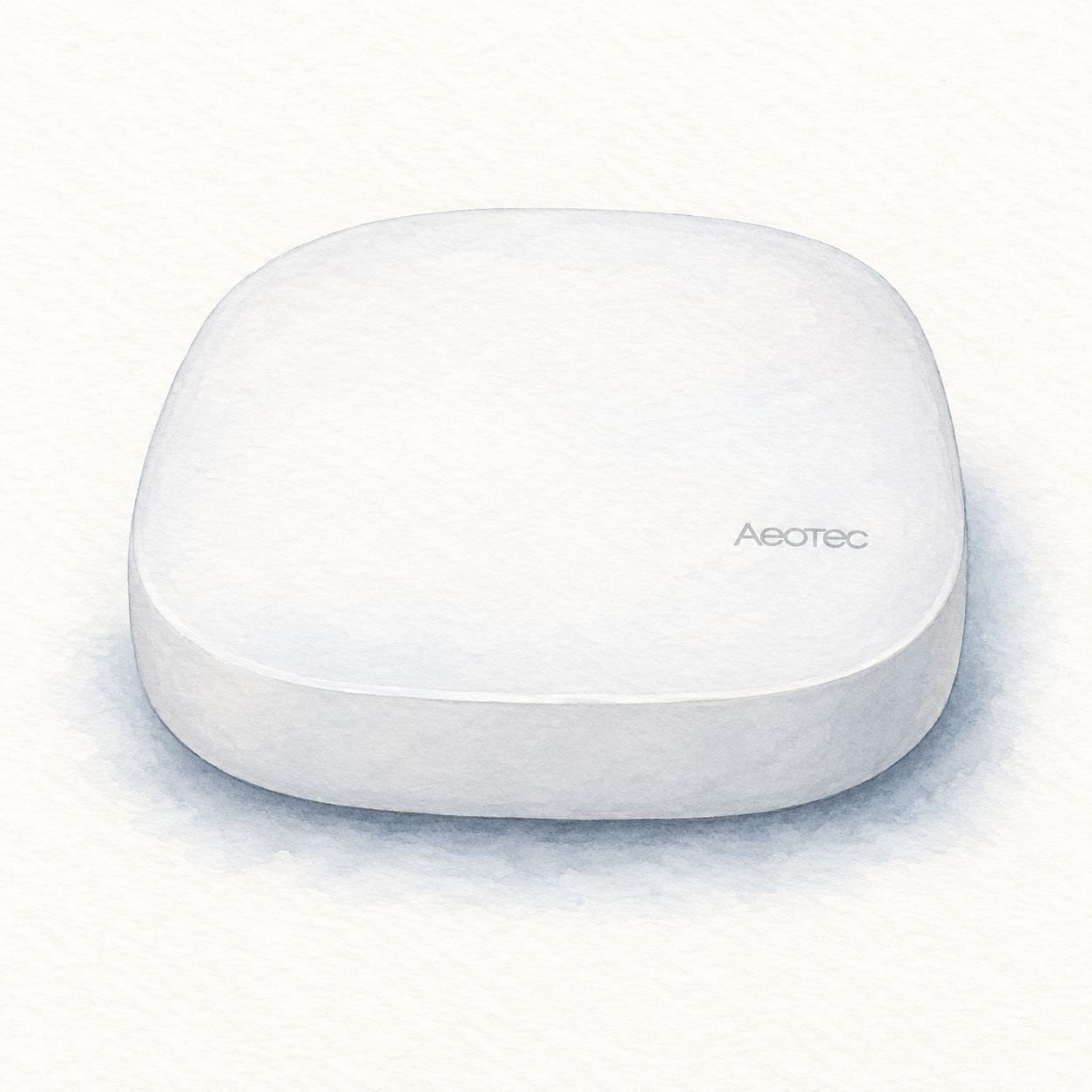
Illustration of the white low-profile rounded-square Aeotec GP-AEOHUBV3 Smart Home Hub; not a product photo, rear ports out of view and cables and power adapter omitted

Aeotec V3 hub illustration — not a product photo or full kit

Aeotec

Aeotec SmartThings Hub

Smart Home Hub for SmartThings

Power and app setup

Confirm US model GP-AEOHUBV3US: regional Z-Wave radios differ. Initial setup needs power, broadband internet, SmartThings and a Samsung account; Ethernet is recommended. Setup does not verify every accessory or establish cloud-free operation.

Setup checks & conditions

Initial setup uses the Samsung account and SmartThings app. This role does not certify an accessory pairing, routine or migration.

  • For initial hub setup, use the supplied power adapter and a broadband internet connection. Aeotec recommends Ethernet for initial setup; wireless connection uses 2.4 GHz Wi-Fi with WPA2. Place the hub centrally, away from large metal objects, and check the connection at its final location.
  • Use the SmartThings app and a Samsung account to register the hub with its QR code or serial number. Allow registration and firmware updates to finish. This assessment covers powering and registering the hub, not migrating an existing home or pairing and validating every accessory and routine.
  • Confirm the US model GP-AEOHUBV3US before buying; regional Z-Wave radios differ. These requirements do not cover Smart Home Hub 2. The unit, firmware and individual device integrations have not been physically verified, and successful setup does not establish cloud-free operation.
All setup checks & sources

Buying considerations

Editorial methodology and sources

We compare model-specific documentation, setup requirements, intended uses, and stated limitations. The sources and scope are recorded on each page. Commercial data is separate: current prices or customer ratings are not implied by a product recommendation. We do not run controlled lab tests or claim hands-on testing unless that is explicitly documented on the page.

No hands-on test or human review is recorded for this guide. Publication is not a verification date; check the linked product profiles for recorded price and rating dates.

References named in this guide are listed below. Their presence does not mean every claim has been independently reverified.

FlowHome may earn from qualifying purchases through affiliate links. Automation can assist with discovery and maintenance, but it does not replace editorial responsibility.

Read our editorial and corrections policy
Browse smart hub category →Aeotec SmartThings Hub Review: Controller Role and Compatibility Checks review →Aqara Hub M2 Review: Zigbee Devices and Matter Bridging review →SwitchBot Hub 2 Review: Matter Bridging and Device Limits review →Read the Aqara Hub M2 vs SwitchBot Hub 2 vs Aeotec comparison →