FlowHome may earn from qualifying Amazon purchases. Recommendations focus on intended use, documented requirements, and explicit limitations.

Best of FlowHome

Smart Home Starter Kit Guide: Choose One Useful Room Routine

Plan a starter setup around a specific room, compatible controls, required accessories, and current total cost.

These are separate product candidates, not a tested bundle or a fixed-budget kit. Start with one useful room routine and confirm every device and accessory required to complete it.

By FlowHome Editorial Team

Published

Evidence basis: data evaluated

Smart Speaker
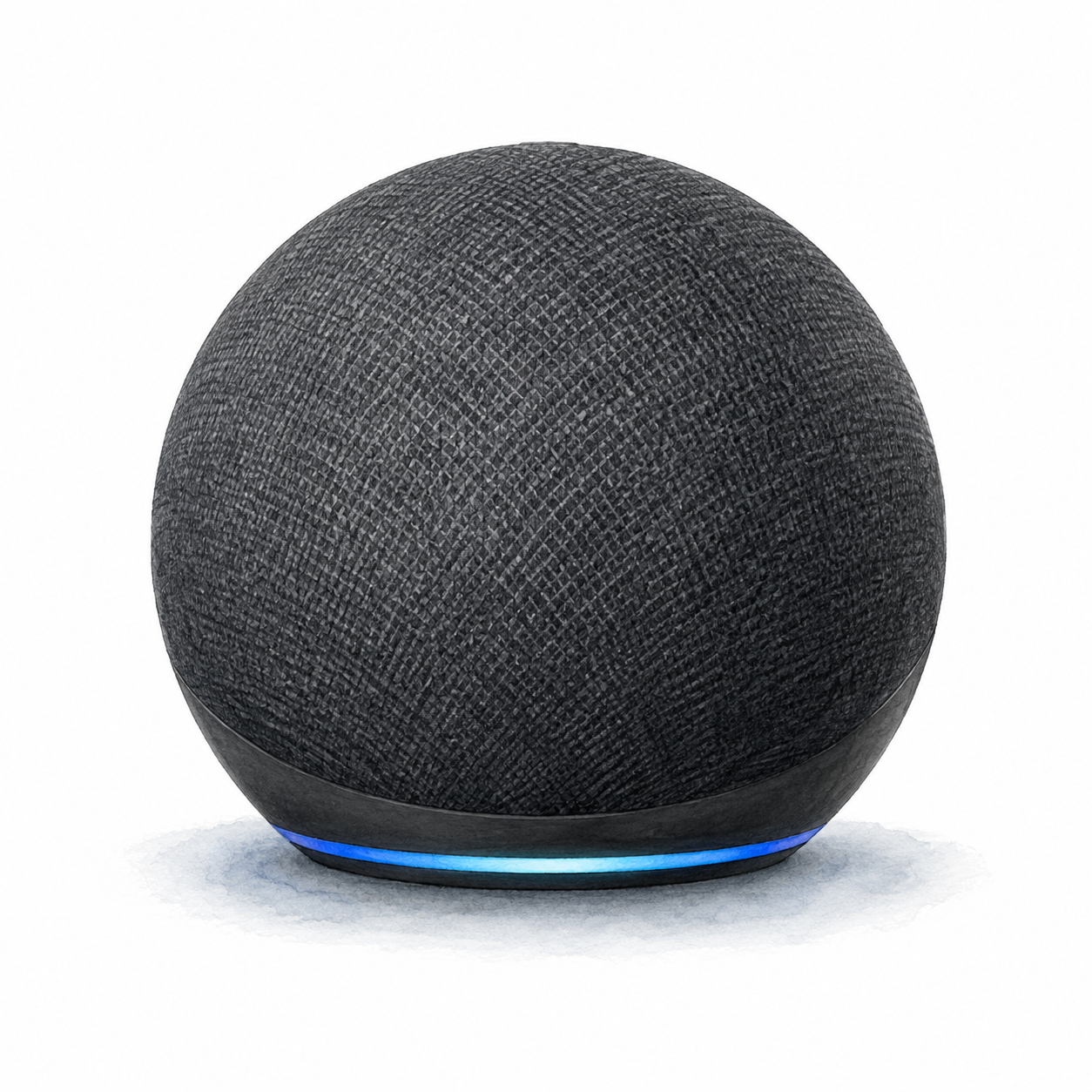
Illustration of the spherical Echo Dot 5th Gen without clock, in charcoal, with a blue light ring at the base; not a product photo

Echo Dot 5th Gen illustration — not a product photo

Amazon

Echo Dot 5th Gen

App-configured smart speaker

Power and app setup

Connect the power adapter, then complete setup in the Alexa app with an Amazon account and Wi-Fi internet.

Setup checks & conditions

Power, Amazon account and Wi-Fi setup are documented; this does not certify a smart-home accessory pairing.

  • Connect the power adapter, then complete setup in the Alexa app with an Amazon account and Wi-Fi internet.
All setup checks & sources
Smart Plug
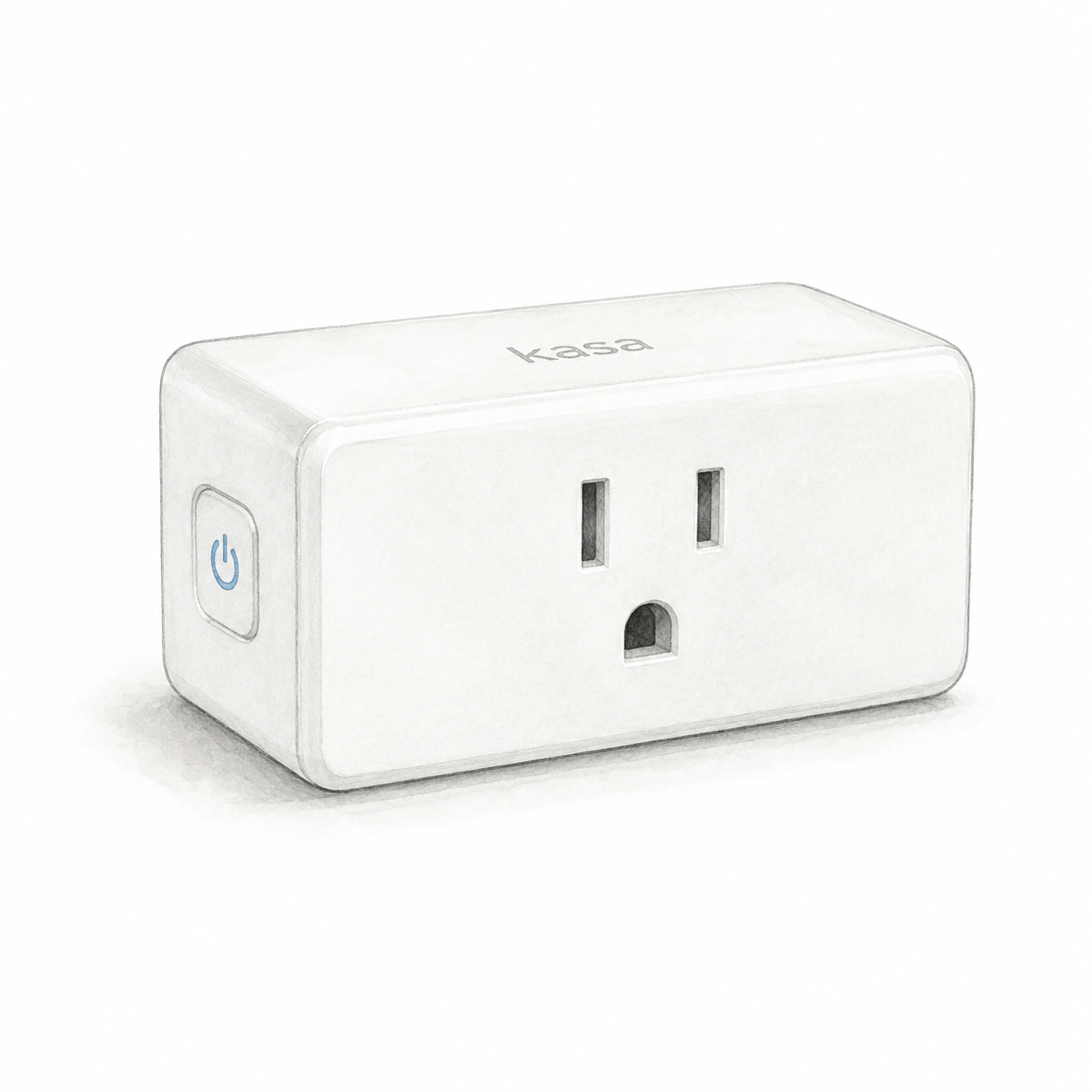
Illustration of one white rectangular Kasa EP10 US smart plug with a grounded front outlet and side button; not a product photo or the complete EP10P2 two-pack

Kasa EP10 illustration — one unit, not a product photo

TP-Link

TP-Link Kasa Smart Plug Mini

Power and app setup

EP10 US needs an indoor 100–120 V AC outlet, away from water, humidity and heat; do not stack adapters. Check appliance-specific load limits: the 15 A / 1800 W general/resistive rating is not a universal appliance limit.

Setup checks & conditions

First setup check

Use a dry indoor outlet and 2.4 GHz Wi-Fi. Check appliance-specific load limits; do not stack plug adapters.

  • For the documented EP10 US, use an accessible indoor outlet, away from water, humidity and heat. Do not stack plug adapters. Check the hardware label against the regional manual; the retail bundle's revision and firmware are not verified.
  • Use 2.4 GHz Wi-Fi and the Kasa Smart app with a TP-Link ID for the documented setup path. A separate hub is not required for that path; follow the app's model-selection instructions.
  • The EP10 US datasheet specifies 100-120 V AC, up to 15 A and 1800 W for general/resistive loads. Those are not universal appliance limits: check the manual's load-specific restrictions and the appliance instructions before connecting it.
All setup checks & sources
Smart Lighting
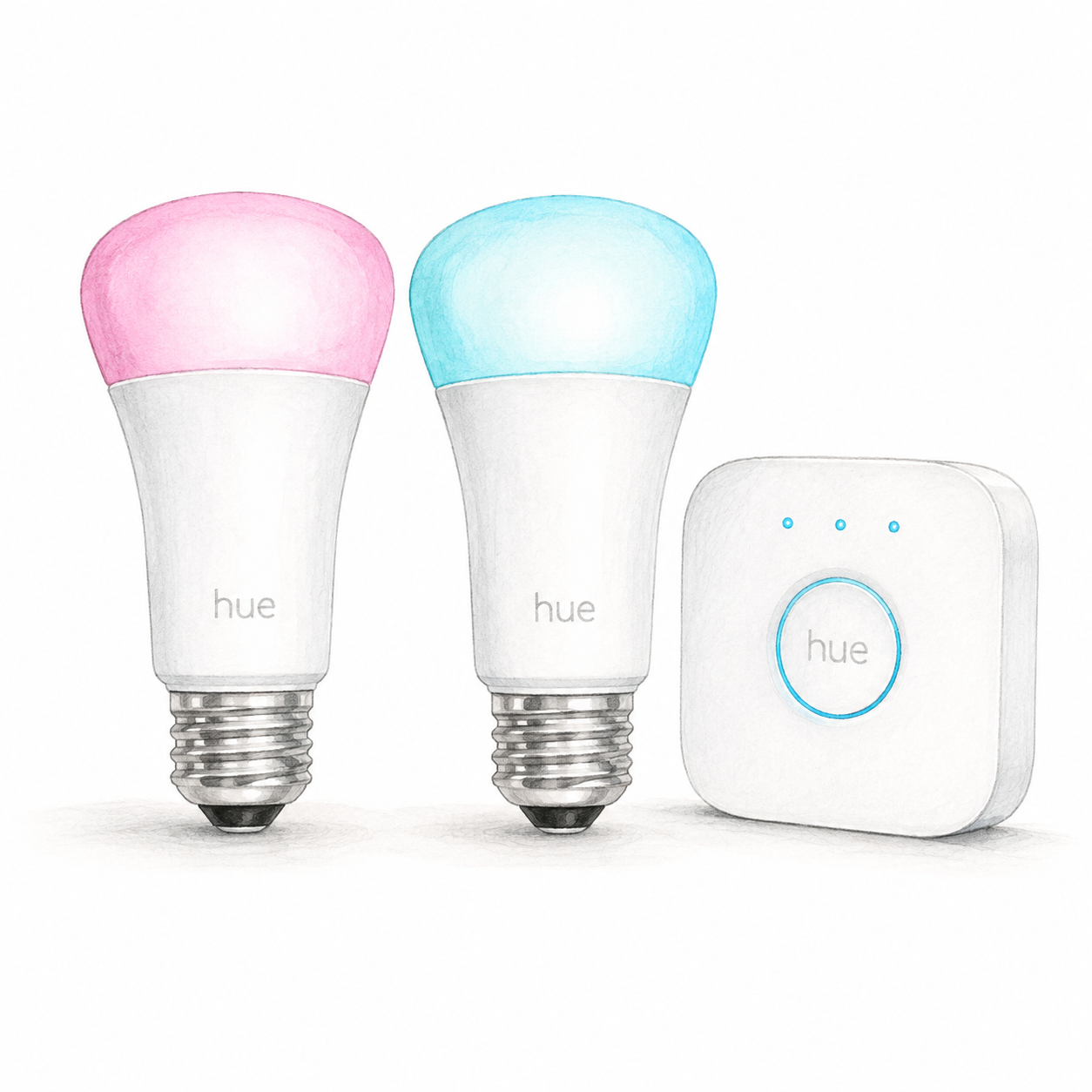
Illustration of two E26 color bulbs and a white square Hue Bridge from kit 562918; illustrative colors, not a product photo, cables and accessories omitted

Hue 562918 device illustration — not a photo; accessories omitted

Philips Hue

Philips Hue White and Color Starter Kit

Mounting or guided setup

Check suitable indoor E26 fixtures rated for these 110–130 V bulbs. The included Bridge needs power and a router Ethernet port.

Setup checks & conditions

First setup check

Check suitable indoor E26 fixtures rated for these 110–130 V bulbs. The included Bridge needs power and a router Ethernet port.

  • Confirm kit 562918 / UPC 046677562915 contains two E26 A19 color bulbs and a Hue Bridge. Check the existing fixtures against the bulb's 110-130 V and IP20 specifications before buying. This assessment covers replacement bulbs in suitable existing fixtures, not rewiring or outdoor installation.
  • Provide power for the Bridge and an available router Ethernet port. Connect the included Ethernet cable, install the Hue app and keep the phone on the same home network during setup. Follow the app to pair the Bridge and discover the powered bulbs.
  • The bulbs use Zigbee with the Bridge; the phone's Wi-Fi connection does not make these bulbs Wi-Fi devices. This profile does not cover Bridge Pro, migration of an existing system or native-Matter bulbs. Confirm the actual hardware, firmware and any assistant setup separately; no physical pairing test has been performed.
All setup checks & sources
Video Doorbell
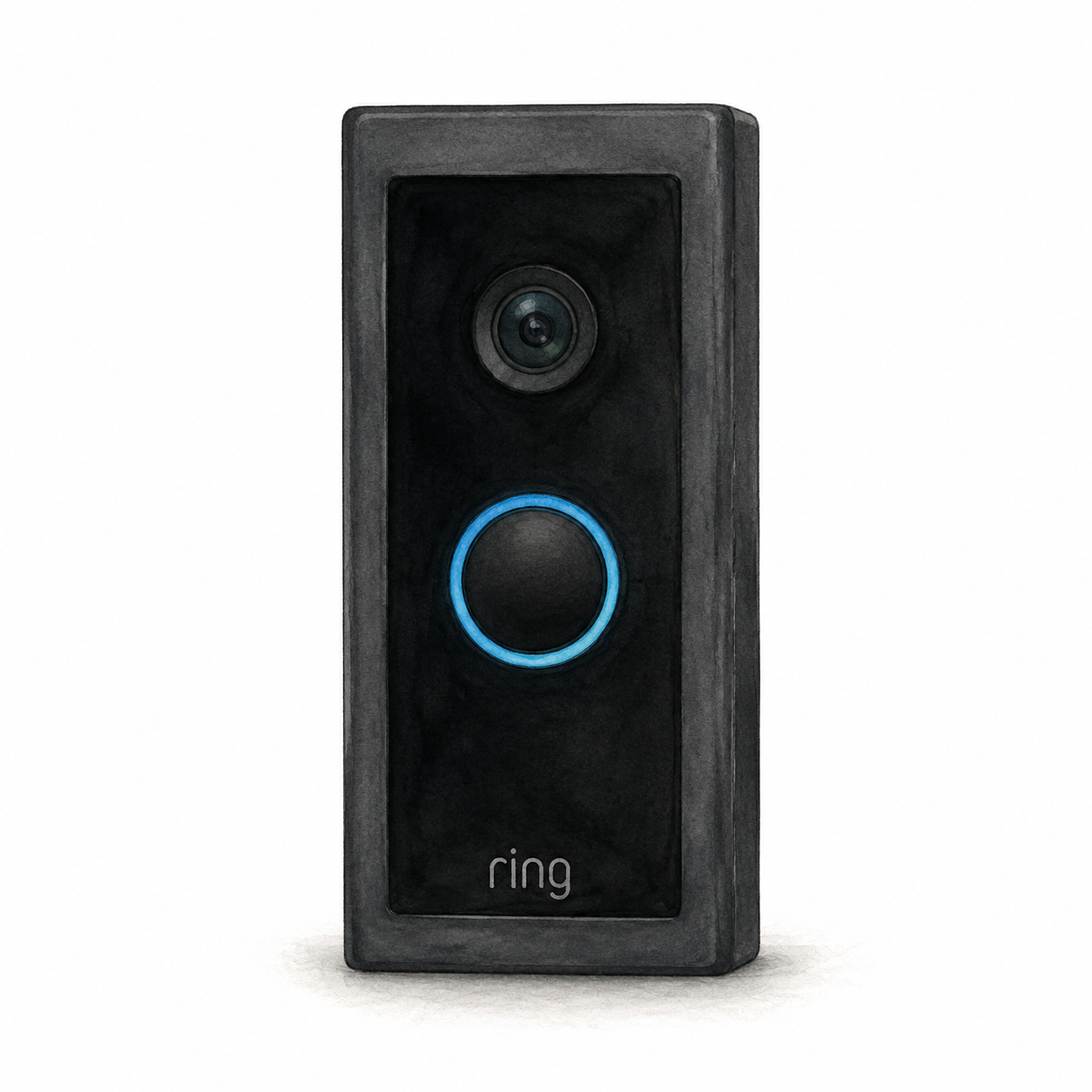
Illustration of the original black Ring Video Doorbell Wired with an upper camera and blue-ringed round button; not a product photo or full installation kit

Ring Video Doorbell Wired illustration — not a product photo

Ring

Ring Video Doorbell Wired

Original wired video doorbell

Wiring or detailed installation checks

Original Wired: verify the specified 10–24 VAC transformer or compatible Ring adapter, not arbitrary DC power. Hardwiring requires breaker isolation and disables the existing chime. Use a licensed electrician if inexperienced or unsure, and follow local requirements.

Setup checks & conditions

First setup check

Original Wired model: verify compatible power before buying. Hardwiring bypasses the existing chime; use a licensed electrician if inexperienced or unsure.

This is not a newer 2K or Pro model. The existing chime and power arrangement require separate checks.

  • Original Video Doorbell Wired: check the transformer and exact regional manual before buying. Ring's US hardwiring guidance specifies 10-24 VAC, 50/60 Hz, 8-40 VA. A compatible Ring Plug-In Adapter is an alternative sold separately; do not assume an arbitrary DC supply is suitable.
  • For hardwiring, disconnect power at the breaker before touching wires. Use a licensed electrician if inexperienced or unsure; local requirements may also require professional installation. With an existing in-home chime, the required jumper bypasses and disables that chime.
  • Plan the mounting surface and cable route, use the supplied mounting and security screws in their designated positions, and follow the Ring app setup. These checks apply to the original Wired model, not newer 2K or Pro models; this is not a step-by-step electrical installation guide.
All setup checks & sources

Buying considerations

Editorial methodology and sources

We compare model-specific documentation, setup requirements, intended uses, and stated limitations. The sources and scope are recorded on each page. Commercial data is separate: current prices or customer ratings are not implied by a product recommendation. We do not run controlled lab tests or claim hands-on testing unless that is explicitly documented on the page.

No hands-on test or human review is recorded for this guide. Publication is not a verification date; check the linked product profiles for recorded price and rating dates.

References named in this guide are listed below. Their presence does not mean every claim has been independently reverified.

FlowHome may earn from qualifying purchases through affiliate links. Automation can assist with discovery and maintenance, but it does not replace editorial responsibility.

Read our editorial and corrections policy
Browse smart hub category →Aeotec SmartThings Hub Review: Controller Role and Compatibility Checks review →Aqara Hub M2 Review: Zigbee Devices and Matter Bridging review →Echo Dot 5th Gen Review: Alexa Controls and Matter Requirements review →Philips Hue Starter Kit 562918 Review: Two E26 Bulbs and Bridge Setup review →